Hurriyet

Fusion etiketine sahip kayıtlar gösteriliyor. Tüm kayıtları göster

12 Şubat 2015 Perşembe

Oracle Fusion Middleware: OBIEE $ReadOverTheLimitException Error While Taking Out a Dashboard - Dashboard'u Rapor Olarak Çıkarma Hatası

Yesterday we solved a problem about extracting the dashboard as a PDF.

We had encountered the following error screen on OBI.


Solution:

This problem was not about increasing the row limit that can be downloaded from Enterprise Manager. It was about adding the following line to the instanceconfig.xml


Oracle Fusion Middleware: Exceeded configured maximum number of allowed input records Error - Maksimum Satır Sayısının Aşılması

The recent error that we encountered on OBI 11g is that we couldn't see the reports which had more 1 million records.

The error was like this:

------------
Error

Exceeded configured maximum number of allowed input records.
Error Details
Error code: EKMT3FK5: OI2DL65P

SQL issued: 195~6qt8lbhf1lvqgn51fqbcp544qq
---------


Solution:
We added the following lines into instanceconfig.xml which is found under for example: "E:\oracle\obia\instances\instance2\config\OracleBIPresentationServicesComponent\coreapplication_obips1 "

We then add the tags such as "MaxVisibleRows","MaxVisibleSections","MaxVisiblePages","MaxVisibleColumns" and "MaxCells" under the appropriate parts.

We also add "Cube" and "Charts" parts. You could just add all the missing parts compared to this instance config xml


After the addition, we should restart the application so that the changes could take effect


References:
1- Maximum number of allowed input records:
http://cherryqq.iteye.com/blog/1856962

30 Ocak 2015 Cuma

Oracle Fusion Middleware: OBIEE PDF - Excel Extracting Printing Error - PDF veya Excel'e Çıkartma Hatası

We have encountered a similar error which a lot of people has also encountered.

This error can happen when the Report that needs to be generated includes a lot of data, it gets stuck to the cache size.


For that we need to change the following config file to modify the following information.

The config file is in $INSTANCE_HOME\config\OracleBIJavaHostComponent\coreapplication_obijh1|

In that folder we change the config.xml. We add

< PDF>
< InputStreamLimitInKB>0</ InputStreamLimitInKB>
 < /PDF>

In addition to the previous configuration, we add:


< XMLP>
< InputStreamLimitInKB>0
< ReadRequestBeforeProcessing>true</ ReadRequestBeforeProcessing>
</ XMLP>

We then restart the BI Server and we can see the changes.


References:
1- http://obiee-sharat.blogspot.com.tr/2013/04/input-stream-with-read-over-limit.html

23 Ocak 2015 Cuma

Oracle Fusion Middleware: Coreapplication_OBICCS1 Stop Error - OBICCS Hatası

Yesterday we managed to solve a problem which was very interesting. We werent able to login to OBIEE even though we were seeing the login page. We also havent changed out passwords during the time. Even though everything seemed to be correct, we couldnt log in to the system.

We ran opmnctl status and saw that OBICCS was kept from running. Something was preventing us from accessing to the bi_server


Solution: 
We executed " tasklist | findstr "pid" " to find which process was stopping us. We saw that a process called vmtoolsd.exe was running the same pid that our coreapplication_obiccs1 tried to use.

We killed the process by " taskkill /pid "pid_no" /F   " /F means force. We forcefully killed the process and then stopped and started the opmn. In the end we were able login to the system.
The original solution can be seen at Reference-2


References:

1- Task Kill - https://technet.microsoft.com/en-us/library/bb491009.aspx
2- OBICCS ERROR - http://www.cnblogs.com/jerryxing/archive/2012/09/29/2708214.html
3- Starting Individual Components - http://www.oraclenerd.com/2011/09/obiee-startstop-individual-components.html


Oracle Fusion Middleware: OBIEE Unable To Create a User System User Connection BI Server Error - OBIEE'ye bağlanılamaması


We have faced an interesting problem which we were able to solve by updating a parameter


In the picture above there is an error called " Unable to create a user system connection to BI Server"
This tells us that the system user cannot access to the server which is generally corruption of the  system user.

Solution:

We go to the link below  to change the credentials. We click on obiee_domain>security>credentials and then re-enter the password for the system user that we have been using before.  As a result we were able to solve the problem.


Oracle Fusion Middleware: OBIEE BootIdentity Error - Boot.properties - Boot Identity Hatası

BootIdentity error was something that we have encountered before but we havent document it before.
We can encounter with this problem in either bi_server.log or admin server logs. (e.g. E:\oracle\obia\user_projects\domains\obia_domain\servers\AdminServer\logs or E:\oracle\obia\user_projects\domains\obia_domain\servers\bi_server\logs)

Basically the error could look like the text below


-----------------------------------
[ACTIVE] ExecuteThread: '0' for queue: 'weblogic.kernel.Default (self-tuning)'Authentication denied: Boot identity not valid; The user name and/or password from the boot identity file (boot.properties) is not valid. The boot identity may have been changed since the boot identity file was created. Please edit and update the boot identity file with the proper values of username and password. The first time the updated boot identity file is used to start the server, these new values are encrypted.
Server subsystem failed. Reason: weblogic.security.SecurityInitializationException: Authentication denied: Boot identity not valid; The user name and/or password from the boot identity file (boot.properties) is not valid. The boot identity may have been changed since the boot identity file was created. Please edit and update the boot identity file with the proper values of username and password. The first time the updated boot identity file is used to start the server, these new values are encrypted.
weblogic.security.SecurityInitializationException: Authentication denied: Boot identity not valid; The user name and/or password from the boot identity file (boot.properties) is not valid. The boot identity may have been changed since the boot identity file was created. Please edit and update the boot identity file with the proper values of username and password. The first time the updated boot identity file is used to start the server, these new values are encrypted.
---------------------------------

This can be commonly seen in the Fusion Middleware environments as boot.properties file gets corrupted.

Solution:
To solve this problem we backup the old boot.properties file for each server which is found in their corresponding security folders.
(e.g E:\oracle\obia\user_projects\domains\obia_domain\servers\bi_server1\security)
After the  backup, we delete boot.properties file and start the weblogic or bi_server1(or any managed weblogic server). When we start that server we will be asked to enter username and password and that is how we fix and update the corrupted username and password. In the end we will be able to start the server.


20 Ocak 2015 Salı

Oracle Fusion Middleware: Specifying Log File Rotation - Adjusting The Logs - Oracle BI Loglama Seviyesini Ayarlamak

Specifying log file rotation is really important. Therefore I really wanted to write an entry for this.
The importance of this is that it can also be applied to other Fusion Middleware Products such as Oracle Discoverer, Oracle EBS  and other products which also use weblogic.

To  go to the logging page, click on the Server node from Environments. Then select the related server, and then go to logging page.  There you could specify the necessary details.

If you want to keep a number of log files then click "Limit the number of Retained Files" and then specify the number of files to be kept.

The other cases are also told in the Reference-1 which is limiting the number of files regarding the time or size.


After we do these changes, we could say that the logging performance would be better, since storage will be kept more wisely.

Log Contents:

Log contents are handled from the same page under the "Advanced Tab". In there you see, which kinds of things should be written or kept from writing. By setting these options, performance of the application can be increased because of the decreased level of logging.


References:
1-https://docs.oracle.com/cd/E13222_01/wls/docs70/ConsoleHelp/servers.html#log_rotation

1 Aralık 2014 Pazartesi

Oracle Fusion Middleware: Running RDA For Hyperion - Remote Diagnostic Agent(RDA) - Hyperion için RDA Çalıştırmak

We have written about the RDA before for OBIEE and EBS.

1- http://berkeoz1.blogspot.com.tr/2014/01/oracle-e-business-suite-rda-nedir.html
2- http://berkeoz1.blogspot.com.tr/2014/07/oracle-fusion-middleware-running-rda.html

Now we would like to specify the usage of rda for Hyperion. The need to that has arisen to detect problems in the Hyperion system. What we had used before was the diagnostic tool of Hyperion.
(http://berkeoz1.blogspot.com.tr/2014/08/oracle-hyperion-starting-and-stopping.html)
However we will be using rda as a complementary tool to our diagnostic efforts.

Where is RDA?

RDA is found in the Middleware Home. (For example:E:\Oracle\Middleware\oracle_common\rda)

We could do the setup which is giving the appropriate details for running rda by "rda.cmd -S".


To list all the profiles that we can run we could use:

rda.exe -L

With that command all the modules and previously defined profiles to analyze the system can be found.


An example of the command to run RDA with using just the HFM module is below:

rda.cmd -vSCRP HFM

An example of the command to run RDA with using profile for HFM is below:

rda.cmd -vSCRP -p Hyperion1112_HFM

In the end, we would have something like the directory structure below in which we run first the "RDA_index.htm" file


References:

1-How to Use Remote Diagnostic Agent (RDA) to Gather Diagnostic Information On Oracle Hyperion Financial Management (HFM) Servers to Help Resolve Service Requests Faster [Video] (Doc ID 1100612.1)

19 Ağustos 2014 Salı

Oracle Fusion Middleware: Error Assigning Users To Application Role in OBIEE 11g - Kullanıcuların Uygulama Rolüne Atanırken Hata Alması

After installing OBIEE 11.1.1.7 on our system, we encountered with an error. This error was occuring although we had succesfully set our Active Directory. Our AD setup was working fine and we were logging in to system with the AD accounts.

Regarding the setup, you could check on how we have done it.
1-rovider - Active Directory Authentication to OBIEE 11g - Active Directory Configuration'ını OBIEE 11g İçin Yapmak

2-hentication to OBIEE 11g - 2 - Deleting Default Provider - Active Directory Configuration'ını OBIEE 11g İçin Yapm

The error that we have seen is

Java.lang.NullPointerException
#{viewScope.emas_pagemodel_security_EditAppRole.searchPrincipal}: java.lang.NullPointerException
     Hide Additional Trace Information

The error screen was like the picture below:


After that we have searched for the error, we have seen that there was a bug concerning this problem.

"Bug 16808088 : 11G JAVA.LANG.NULLPOINTEREXCEPTION ADDING USER TO ROLE AFTER UPGRADE TO 11.1.1.7"


The proposed solution is to set the virtualize parameter to false if it ise set. Virtualize parameter doesn't work with the username.attr which we have previously set in the security provider configuration settings.

In the end, we changed its value to false and we were able overcome this problem.

Reference:
1- https://community.oracle.com/thread/2530201?start=0&tstart=0

Oracle Fusion Middleware: EVALUATE_SUPPORT_LEVEL Error in Oracle OBIEE 11g

EVALUATE_SUPPORT_LEVEL errror appers when we open a report from a catalog or a dashboard. It has a quite simple solution.


In order to to solve this problem, we change evaluate support level parameter in the NQSConfig.ini file to the value given below:

EVALUATE_SUPPORT_LEVEL=2


After that, we could restart the BI server to activate the changes.

Oracle Fusion Middleware: Using Active Directory as a User Provider - Active Directory Authentication to OBIEE 11g - 2 - Deleting Default Provider - Active Directory Configuration'ını OBIEE 11g İçin Yapmak ve Default Provider'ı Kaldırmak

In our previous article, we explained how to add Active Directory as an user provider. Now we will delete the default authenticator in order to make the newly added Active Directory our only provider to have a tighter security configuration.

2.Deleting Default Provider

The reason why we put 2 at the beginning is that we are assuming that we have added the Active Directory just like we did on the arcticle before this.

2.1 Update the Credential Store Password

These configuration changes can be made from entreprise manager. The link should be like this: http://localhost:7001/em

Open Weblogic Domain / bifoundation_domain screen. Select Security / Credentials item under WebLogic Domain menu.


Find “system.user” under oracle.bi.system and click Edit.
Input the new user name and password. We have created OBIA_BISystemUser just for this purpose. We will use it later to add more privileges to our system user.

2.3. Security Provider Configuration

Click “WebLogic Domain” menu. Click “Security Provider Configuration” menu item under Security sub-menu.


We then add the following properties.

Property Name
Value
virtualize
false
user.login.attr
samaccountname
username.attr
samaccountname

2.4. Assign application roles to system users and groups

Select Business Intelligence / coreapplication from left panel. Click on Security / Application Roles item on Business Intelligence Instance menu.


Make the following assignments :

Role Name
Members
BISystem
OBIA_BISystemUser (User)
BIAdministrator
OBIA_Administrators (Group)
BIAuthor
OBIA_Administrators (Group)
BIConsumer
OBIA_Administrators (Group)
Note: The users and the groups are newly created. The creation process is explained on the first part of this arcticle.


2.5. Assign global roles to system users and groups:

Open Weblogic Admin Console. Go to “myrealm” in WebLogic Admin Console. Go to Roles and Policies tab. In “Realm Roles” sub tab, expand Global Roles / Roles.


Assign the roles to LDAP groups as seen in the following table.

Global Roles :
Assignment :
Admin
Group : OBIA_Administrators
User : OBIA_BISystemUser
AdminChannelUsers
Group : OBIA_Administrators
AppTester
Group : OBIA_Administrators
CrossDomainConnector
Group : OBIA_Administrators
Deployer
Group : OBIA_Administrators
Monitor
Group : OBIA_Administrators
Operator
Group : OBIA_Administrators

2.6. Delete default provider:

Go to Providers tab under security realm “myrealm”. Click on Active Directory provider we created. Select REQUIRED in Control Flag dropdown field. Click Save.

2.7. Stop and start BI services:

Click “Stop BI Services” under “Oracle Business Intelligence” group in Start Menu. To proceed, we have to provide weblogic user and its password in the console.
Delete the two boot.properties files in the following locations :
%OBI_HOME%\user_projects\domains\bifoundation_domain\servers\AdminServer\security
%OBI_HOME%\user_projects\domains\bifoundation_domain\servers\bi_server1\security

Click “Start BI Services” under “Oracle Business Intelligence” group in Start Menu.
Enter the user and password of OBIA_Weblogic when prompted.


Oracle Fusion Middleware: Using Active Directory as a User Provider - Active Directory Authentication to OBIEE 11g - Active Directory Configuration'ını OBIEE 11g İçin Yapmak

In Oracle OBIEE 11g, we could use AD(Active Directory) as an LDAP source. Therefore we could use the users and their accounts which are defined in AD server. To do that, we have some configuration tasks to apply in Oracle Weblogic Server and Fusion Middleware Control which is  also known as Oracle .

1. Creating a New Provider

1.1. Create System Users & Groups in Active Director:First step is to create some of system users in AD. These are:

OBIA_Weblogic, OBIAOracleSystemUser, OBIA_BISystemUser

We also need to create 2 groups in AD. These are

OBIA_Administrators(Member:OBIA_Weblogic) and OBIAOracleSystemGroup(OBIAOracleSysUser)

The reason why we added prefixes like OBIA is to make them specific to our installation.

1.2 Backup of Configuration: 

The given config.xml file is where we %OBI_HOME%\user_projects\domains\bifoundation_domain\config\config.xml

In case we  make an error, we should have a backup of this file. If we ever have a problem with the opening of Oracle Weblogic, we could solve this problem by returning to the old configuration file.

1.3 Creation of Active Directory Provider:

Lets login to the Weblogic Admin Console: http://localhost:7001/console. Ports and links  may change according the installation you are making.

Click Security Realms on left panel. Click “myrealm” on Realms list. Go to Providers tab. Click Lock & Edit button on left panel. Click NEW. 


Specify the name for new authentication provider as you like.  Select “ActiveDirectoryAuthenticatior” from the TYPE drop-down list. Click OK. Click on the newly created Active Directory provider.
Select SUFFICIENT from Control Flag drop down list. Click SAVE. Then we fill the Provider specific properties. 

Connection / Host
Active Directory IP

Connection / Port
389
Connection / Principal
cn=obia_weblogic,cn=users,dc=gm,dc=,dc=com,dc=tr 
Connection / Credential
Passw0rd
Connection / SSLEnabled
NOT SELECTED
Users / User Base DN
dc=gm,dc=,dc=com,dc=tr

Users / All Users Filter

Users / User From Name Filter
(&(samaccountname=%u)(objectclass=user))
Users / User Search Scope
subtree
Users / User Name Attribute
samaccountname
Users / User Object Class
user
Users / Use Retrieved User Name as Principal
SELECTED
Groups / Group Base DN
cn=users,dc=gm,dc=,dc=com,dc=tr 
Groups / All Groups Filter

Groups / Group From Name Filter
(&(cn=%g)(objectclass=group))
Groups / Group Search Scope
subtree
Groups / Group Membership Searching
limited
Groups / Max Group Membership Search Level
1
Groups / Ignore Duplicate Membership
NOT SELECTED
Groups / Use Token Groups For Group Membership Lookup
NOT SELECTED
Static Groups / Static Group Name Attribute
cn
Static Groups / Static Group Object Class
group
Static Groups / Static Member DN Attribute
member
Static Groups / Static Group DNs from Member DN Filter
(&(member=%M)(objectclass=group))
Dynamic Groups / Dynamic Group Name Attribute

Dynamic Groups / Dynamic Group Object Class:

Dynamic Groups / Dynamic Member URL Attribute

Dynamic Groups / User Dynamic Group DN Attribute

General / Connection Pool Size
0
General / Connect Timeout
20
General / Connection Retry Limit
3
General / Parallel Connect Delay
0
General / Results Time Limit
0
General / Keep Alive Enabled
NOT SELECTED
General / Follow Referrals
SELECTED
General / Bind Anonymously On Referrals
NOT SELECTED
General / Propagate Cause For Login Exception
NOT SELECTED
General / Cache Enabled
SELECTED
General / Cache Size
32
General / Cache TTL
60
General / GUID Attribute
samaccountname

Click DefaultAuthenticator from the Provider list.
Select SUFFICIENT from Control Flag drop down list. Click SAVE.
Click Activate Changes button from Left Panel. Stop and start BI Services for these changes to take effect. 

1.4 Check If Integration Works

Login Weblogic admin console and go to Provider list. Click on Users and Groups tab.
See if users and groups from Active Directory are listed. 

1.5 Security Provider Configuration

Click “WebLogic Domain” menu in Enterprise Manager. Click “Security Provider Configuration” menu item under Security sub-menu.


Add the following property to the custom properties.

Property Name
Value
virtualize
true

Now we shoud be able to login to the environment with both our default authenticator and with the users from active directory users.

References:

1-http://www.peakindicators.com/media_pi/Knowledge/oracle%20bi%2011g%20-%20active%20directory%20authentication.pdf

2- TechNote: Configuring Oracle BI 11g and Weblogic for Single Sign-On using Kerberos-based Windows Authentication backed by Active Directory.
An Oracle White Paper
Updated October 2011

13 Ağustos 2014 Çarşamba

Oracle Hyperion: Starting and Stopping HFM 11.1.2.3

START:

EPM System Installer provides us a single start script under EPM_ORACLE_INSTANCE/bin which is called start.bat depending on the operating system.
To start the system, we start from foundation server, and run the start.bat under the "E:\Oracle\Middleware\user_projects\epmsystem1\bin". Then we pass on to the application server and run the start.bat which also under this or a similar path "E:\Oracle\Middleware\user_projects\epmsystem2\bin".

To check if we have succeeded on starting the application, we could run EPM System Diagnostics.

STOP:

Stoping procedure is quite similar to starting procedure. To stop we could start from the application server then stop the foundation server.


What is  EPM System Diagnostics?

Epm System Diagnostics is a tool that makes the essantial checks on a system and produces a report in which it shows its analysis. EPM System Diagnostics can be found on both of the servers(Applciation and Foundation). After the analysis, reports are created int the following path which may change according to the installation "E:\Oracle\Middleware\user_projects\epmsystem2\diagnostics\reports\"
Example:"E:\Oracle\Middleware\user_projects\epmsystem1\diagnostics\reports\instance_report_20140813_034231.html"

These reports can be used to for historical evalution. For example to estimate a time period where  we have last succeeded on running some module or when some module just crashed, we could always check these things.

System Diagnostics exe can be found in the  EPM_ORACLE_INSTANCE/bin

EXE's  and URL's 

Oracle Hyperion Shared Services Console: http://machine_name:Port/interop.  This is found on the Foundation Server. Example: http://machine_name:28080/interop

EPM Workspace: Http://machine:port/workspace. Workspace URL's can be also found on foundation services.
Example. http://machine_name:19000workspace


12 Ağustos 2014 Salı

Oracle Hyperion: HFM Applications and Menu Item Are Not Displayed In Workspace - Error

Financial Management related menu items in Workspace can disappear from time to time if there happens to be any change in the configuration. The following ways of


1-File -> Preferences -> Consolidation
2-File -> Open -> Applications -> Consolidation
3-Navigate (the "wheel") -> Applications -> Consolidation
4-Navigate (the "wheel") -> Administer -> Consolidation Administration, plus the items "Users On Systems", "System Messages" and "Manage Servers and Applications".

When this happens, it is usually due to some kind of system configuration or parameter change.

How to solve this problem?

The way to solve this problem is running the Web Server Configuration Task from the Foundation Server.
This error was mostly seen in HFM 11.1.1.3 but it is also the correct way to solve it in HFM 11.1.2.3.

We first go to Foundation Server and run the configurator.


Then we configure all the financial management tasks.


After that we configure only "Configure Web Server" task.


Make sure that the HFM component is selected and shows the correct address and port; complete the task and Finish. Then in order , stop the Foundation Workspace Web Application service, stop and restart the Foundation Workspace Agent service. At last restart the Foundation Workspace Web Application service


References:

1-http://concentricsolutions.helpserve.com/Knowledgebase/Article/View/22/1/hfm-applications-and-menu-item-are-not-displayed-in-workspace

Oracle Hyperion: Logs in HFM 11.1.2.3

When we need Hyperion Logs, usually to send the information to SR or to find and search the error in the internet, we have to know where they are. So we will list the log file locations in case of an emergency.

1-E:\Oracle\Middleware\diag

Diagnostics directory under Middleware is where we can find the information needed when we run diagnostics tool.


2-E:\Oracle\Middleware\EPMSystem11R1\logs

What we have under this directory, is the logs belonging to application. For example, copy application log is found here. BIPlus logs are placed here. Whether we have done the right configuration or not, its logs are written under this path.

3-E:\Oracle\Middleware\logs

This path is more like the installation log file.

4-E:\Oracle\Middleware\user_projects\epmsystem2\diagnostics

Diagnostics paths under the domain home is the real location where the runtime logs are placed. We need to be aware of this directory's presence.


Note:Paths may change according to the directory installation.


How to view the system logs? 

There is actually two tools for this purpose given by Hyperion. In HFM 11.1.2.3, the application server of Hyperion, under
"E:\Oracle\Middleware\EPMSystem11R1\products\FinancialManagement\Consultant Utilities\" , our two are placed. One is the HFM Error Log Viewer to search for errors, second is to lookup for error which is seen on the HFM Error Log Viewer. Moreover, our research for solution becomes easier.


Oracle Hyperion: Copying HFM Application - Running HfmCopyApplication.exe - HfmCopyApplication Çalıştırmak

In Hyperion 11.1.2.3 CopyApplication.exe is found in the C:\Oracle\Middleware\EPMSystem11R1\products\FinancialManagement\Server . Under the "Server" directory you could find HfmCopyApplication.exe which is used to copy the applications from one HFM server to another or within the environment.

What do we need to run it?

We need 2 UDL's or just one according to the need. If we are using it to transport the application from one environment to another then we need 2.


These UDL's are used in order to show the database information. Because our database is on SQL server, we need to use SQL UDL's, one for source, one for destination.


Why is it used?

It is used mainly for synchronization between Production and Development environments. Therefore it is highly cruical for companies.

Other than migration, it can be used to:

1-Backup
2-Copy
3-Recover

Where is it found?

\EPMSystem11R1\products\FinancialManagement\Server 

Depending on how you install it, it can be found under D:\Hyperion\products\FinancialManagement\Server in HFM 11.1.1.3

Where are its logs?

D:\Hyperion\logs\hfm in HFM 11.1.1.3
E:\Oracle\Middleware\EPMSystem11R1\logs\hfm in HFM 11.1.2.3

The paths may change depending on the installation directories.

Note: If you used HfmCopyApplication to create a new HFM application (not to overwrite the content of an existing one) you need to register the application to Shared Services before being able to use it. This can be accomplished by using the Register Application function found in EPM Workspace.

References:

1-Copying HFM Applications: http://hyperionfinn.blogspot.com.tr/2012/02/copying-hfm-applications-on-command.html

2-EPM Utilities: http://hyperionnz.blogspot.com.tr/2012/06/epm-utilities-that-you-should-know.html

3-http://oraclehyperionstuff.blogspot.com.tr/2012/02/how-to-backup-hfm-application-for.html

6 Ağustos 2014 Çarşamba

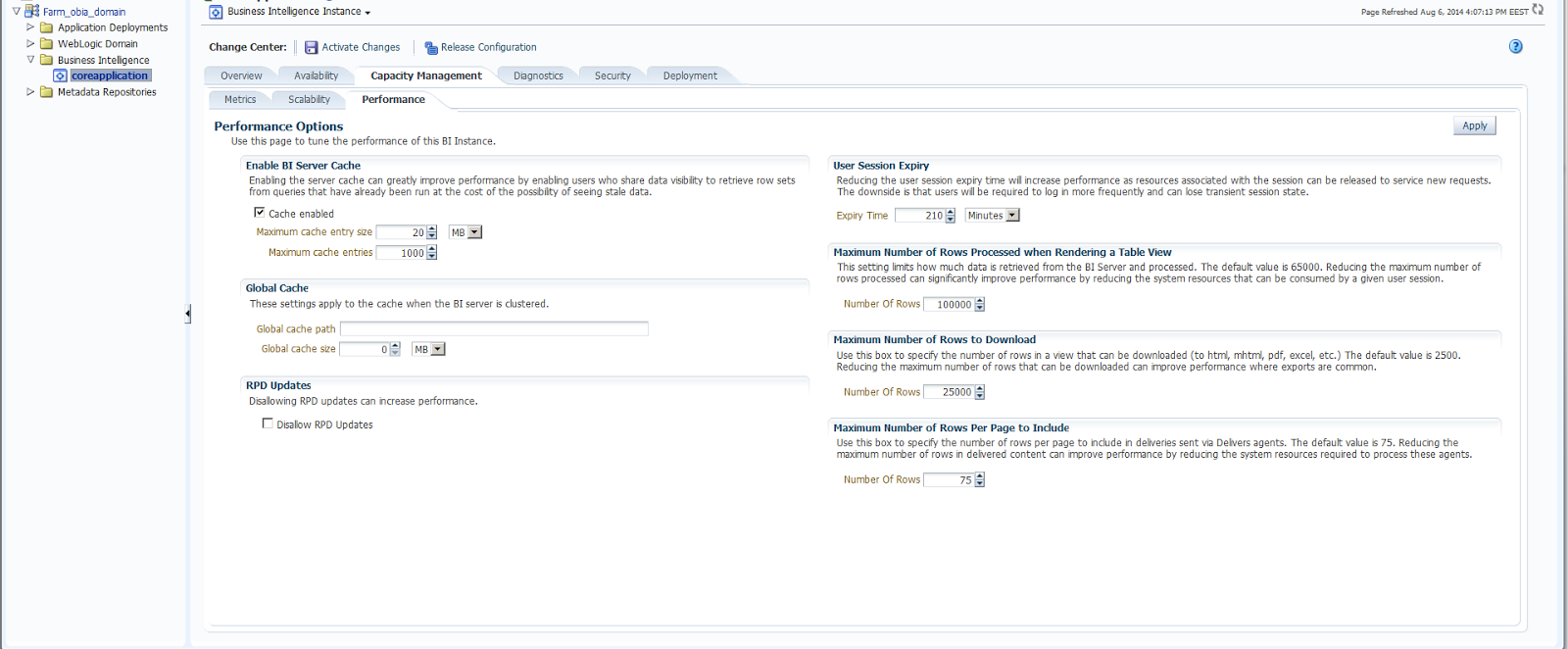
Oracle Fusion Middleware: Changing The Default Values Of The Reports in OBIEE 11g - Raporların Sabit Değerlerinin Değiştirilmesi


We would now like to change the default values of  the reports that we export. The reason why we are changing these values is that we either want to modify default number of rowthat can be downloaded to the reports or to modify the number of row that is processed. There are some other parameters too that can be changed according to the need but the ones that we are focusing on are the ones explained above.


So in order to change the configuration, we lock and edit the configuration, then we set out to change the values. Proposed values can be seen in the picture. Then we activate the changes and restart the BI_Server components. In conclusion we would have our values changes, therefore our configuration is changed, and the way our reports produced would be more suitable for us.

Oracle Fusion Middleware: Increasing Numbers Of Row To Display/Export to Excel From Analysis in OBIEE 11g - Excel'e Export Alınırken Görüntülenen Satır Sayısının Arttırılması

When we try to export one report that we had in OBIEE, we encountered with a problem which said that we were exceeding the maximum limit of row numbers that could be seen in an Excel Report. Problem looked like the picture below:


The error code was EY692ZW9 (Maximum total number of cells exceeded. (Limit 50000)).

Therefore we looked for the ways to solve this problem. To overcome this difficulty we had to change some parameters in our instanceconfig.xml which was found in the following path:
C:\oracle\OracleBusinessIntelligence\instances\instance1\config\OracleBIPresentationServicesComponent\coreapplication_obips1\

After we have reached our destination file, we then changed the tab with the following lines.


75

25000

false
5000
2500
500000
5000
1920000


75

25000
2500
500000
5000
1920000


Briefly, we added the following parameters to both the tab and the pivot .


2500
500000
5000
1920000

In the end we able to extract all the rows we need in our report which needed 28000 lines instead of just 8000.

References:
1-http://oraclebisolutions.blogspot.com.tr/2013/01/increase-number-of-rows-to.html
2-https://community.oracle.com/thread/2341945?tstart=0
3-https://community.oracle.com/thread/2391197?tstart=0
4-http://shivabizint.wordpress.com/2011/08/26/export-more-than-6500-obiee-11g-records-to-excel/
5-https://community.oracle.com/thread/2473815?tstart=0
6-http://ruchi-obiee.blogspot.in/2012/05/to-limit-number-of-rows-in-pivot-table_07.html
7-http://docs.oracle.com/cd/E25178_01/bi.1111/e10541/answersconfigset.htm#CIHJDHGI