Hurriyet

12 Ağustos 2014 Salı

Oracle Hyperion: HFM Applications and Menu Item Are Not Displayed In Workspace - Error

Financial Management related menu items in Workspace can disappear from time to time if there happens to be any change in the configuration. The following ways of


1-File -> Preferences -> Consolidation
2-File -> Open -> Applications -> Consolidation
3-Navigate (the "wheel") -> Applications -> Consolidation
4-Navigate (the "wheel") -> Administer -> Consolidation Administration, plus the items "Users On Systems", "System Messages" and "Manage Servers and Applications".

When this happens, it is usually due to some kind of system configuration or parameter change.

How to solve this problem?

The way to solve this problem is running the Web Server Configuration Task from the Foundation Server.
This error was mostly seen in HFM 11.1.1.3 but it is also the correct way to solve it in HFM 11.1.2.3.

We first go to Foundation Server and run the configurator.


Then we configure all the financial management tasks.


After that we configure only "Configure Web Server" task.


Make sure that the HFM component is selected and shows the correct address and port; complete the task and Finish. Then in order , stop the Foundation Workspace Web Application service, stop and restart the Foundation Workspace Agent service. At last restart the Foundation Workspace Web Application service


References:

1-http://concentricsolutions.helpserve.com/Knowledgebase/Article/View/22/1/hfm-applications-and-menu-item-are-not-displayed-in-workspace

Oracle Hyperion: Logs in HFM 11.1.2.3

When we need Hyperion Logs, usually to send the information to SR or to find and search the error in the internet, we have to know where they are. So we will list the log file locations in case of an emergency.

1-E:\Oracle\Middleware\diag

Diagnostics directory under Middleware is where we can find the information needed when we run diagnostics tool.


2-E:\Oracle\Middleware\EPMSystem11R1\logs

What we have under this directory, is the logs belonging to application. For example, copy application log is found here. BIPlus logs are placed here. Whether we have done the right configuration or not, its logs are written under this path.

3-E:\Oracle\Middleware\logs

This path is more like the installation log file.

4-E:\Oracle\Middleware\user_projects\epmsystem2\diagnostics

Diagnostics paths under the domain home is the real location where the runtime logs are placed. We need to be aware of this directory's presence.


Note:Paths may change according to the directory installation.


How to view the system logs? 

There is actually two tools for this purpose given by Hyperion. In HFM 11.1.2.3, the application server of Hyperion, under
"E:\Oracle\Middleware\EPMSystem11R1\products\FinancialManagement\Consultant Utilities\" , our two are placed. One is the HFM Error Log Viewer to search for errors, second is to lookup for error which is seen on the HFM Error Log Viewer. Moreover, our research for solution becomes easier.


Oracle Hyperion: Copying HFM Application - Running HfmCopyApplication.exe - HfmCopyApplication Çalıştırmak

In Hyperion 11.1.2.3 CopyApplication.exe is found in the C:\Oracle\Middleware\EPMSystem11R1\products\FinancialManagement\Server . Under the "Server" directory you could find HfmCopyApplication.exe which is used to copy the applications from one HFM server to another or within the environment.

What do we need to run it?

We need 2 UDL's or just one according to the need. If we are using it to transport the application from one environment to another then we need 2.


These UDL's are used in order to show the database information. Because our database is on SQL server, we need to use SQL UDL's, one for source, one for destination.


Why is it used?

It is used mainly for synchronization between Production and Development environments. Therefore it is highly cruical for companies.

Other than migration, it can be used to:

1-Backup
2-Copy
3-Recover

Where is it found?

\EPMSystem11R1\products\FinancialManagement\Server 

Depending on how you install it, it can be found under D:\Hyperion\products\FinancialManagement\Server in HFM 11.1.1.3

Where are its logs?

D:\Hyperion\logs\hfm in HFM 11.1.1.3
E:\Oracle\Middleware\EPMSystem11R1\logs\hfm in HFM 11.1.2.3

The paths may change depending on the installation directories.

Note: If you used HfmCopyApplication to create a new HFM application (not to overwrite the content of an existing one) you need to register the application to Shared Services before being able to use it. This can be accomplished by using the Register Application function found in EPM Workspace.

References:

1-Copying HFM Applications: http://hyperionfinn.blogspot.com.tr/2012/02/copying-hfm-applications-on-command.html

2-EPM Utilities: http://hyperionnz.blogspot.com.tr/2012/06/epm-utilities-that-you-should-know.html

3-http://oraclehyperionstuff.blogspot.com.tr/2012/02/how-to-backup-hfm-application-for.html

6 Ağustos 2014 Çarşamba

Oracle Fusion Middleware: Changing The Default Values Of The Reports in OBIEE 11g - Raporların Sabit Değerlerinin Değiştirilmesi


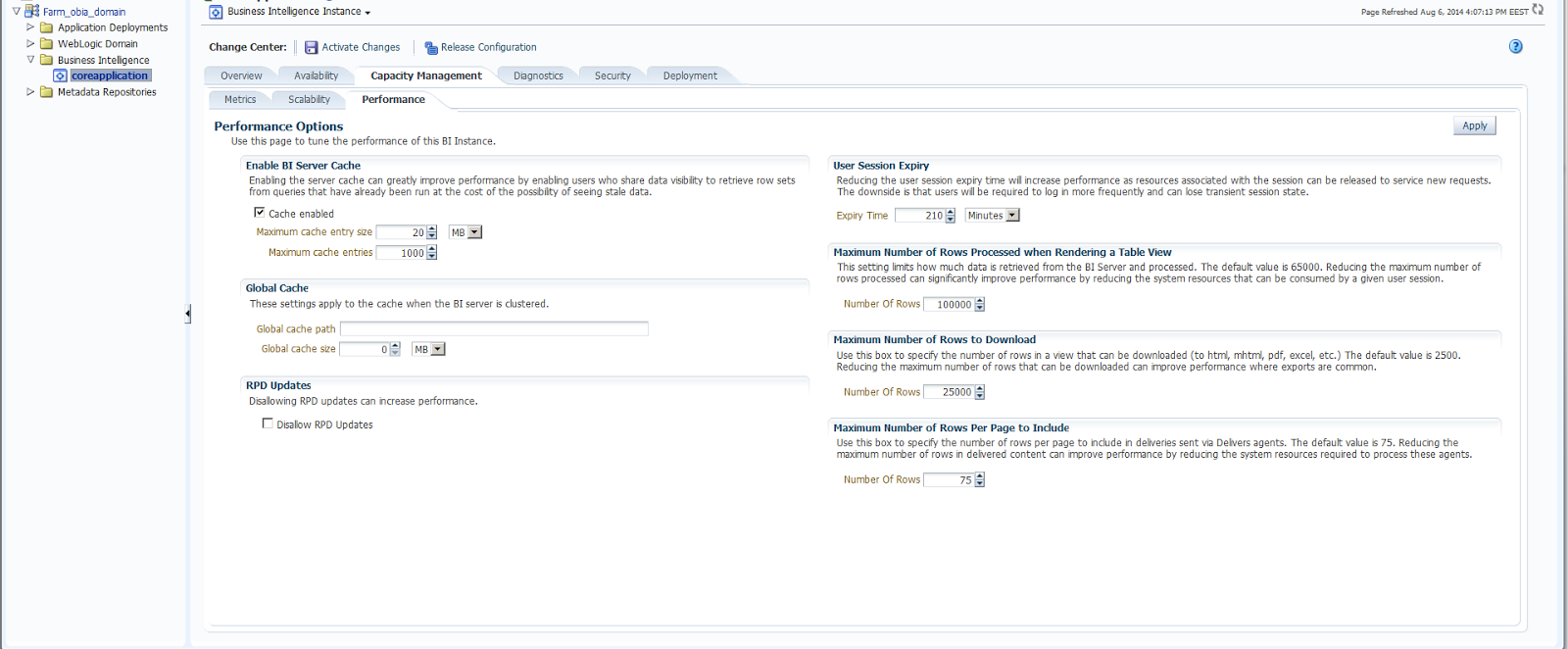
We would now like to change the default values of  the reports that we export. The reason why we are changing these values is that we either want to modify default number of rowthat can be downloaded to the reports or to modify the number of row that is processed. There are some other parameters too that can be changed according to the need but the ones that we are focusing on are the ones explained above.


So in order to change the configuration, we lock and edit the configuration, then we set out to change the values. Proposed values can be seen in the picture. Then we activate the changes and restart the BI_Server components. In conclusion we would have our values changes, therefore our configuration is changed, and the way our reports produced would be more suitable for us.

Oracle Fusion Middleware: Increasing Numbers Of Row To Display/Export to Excel From Analysis in OBIEE 11g - Excel'e Export Alınırken Görüntülenen Satır Sayısının Arttırılması

When we try to export one report that we had in OBIEE, we encountered with a problem which said that we were exceeding the maximum limit of row numbers that could be seen in an Excel Report. Problem looked like the picture below:


The error code was EY692ZW9 (Maximum total number of cells exceeded. (Limit 50000)).

Therefore we looked for the ways to solve this problem. To overcome this difficulty we had to change some parameters in our instanceconfig.xml which was found in the following path:
C:\oracle\OracleBusinessIntelligence\instances\instance1\config\OracleBIPresentationServicesComponent\coreapplication_obips1\

After we have reached our destination file, we then changed the tab with the following lines.


75

25000

false
5000
2500
500000
5000
1920000


75

25000
2500
500000
5000
1920000


Briefly, we added the following parameters to both the tab and the pivot .


2500
500000
5000
1920000

In the end we able to extract all the rows we need in our report which needed 28000 lines instead of just 8000.

References:
1-http://oraclebisolutions.blogspot.com.tr/2013/01/increase-number-of-rows-to.html
2-https://community.oracle.com/thread/2341945?tstart=0
3-https://community.oracle.com/thread/2391197?tstart=0
4-http://shivabizint.wordpress.com/2011/08/26/export-more-than-6500-obiee-11g-records-to-excel/
5-https://community.oracle.com/thread/2473815?tstart=0
6-http://ruchi-obiee.blogspot.in/2012/05/to-limit-number-of-rows-in-pivot-table_07.html
7-http://docs.oracle.com/cd/E25178_01/bi.1111/e10541/answersconfigset.htm#CIHJDHGI

23 Temmuz 2014 Çarşamba

Oracle E-Business Suite: Cancelling or Closing Workflow Notification - Workflow Kapatma veya İptal Etme


There is a PL\SQL Script that can cancel or close workflow notifications through its API.   The script below has 2 parameters (recepient_role and close_type). The workflows can be closed or cansel with the script below according to its close type value.

 declare   
  -- declare Cursor   
  cursor get_notif is select * from wf_notifications where recipient_role='&UserName' and status='OPEN';  
  -- Local variables here  
  i integer      number(10):=1;  
  notification_type  varchar2(10):= '&nType';  
 begin  
  dbms_output.put_line('Executing Procedure');  
  -- open cursor to check open notifications which needs to be closed  
  for c_get_notif in get_notif  
   loop  
   begin  
   
   -- Check notificaiton type (close or cancel)  
   -- CLOSE - This will close information notifications only, all action required notification will not be close  
   -- CANCEL - This will cancel notification, action required notification such as Approve/Reject will be cancelled and cannot be rollback, users will not be able to take actiion on such notification later  
   if upper(notification_type)='CLOSE' then  
    wf_notification.Close(c_get_notif.notification_id, c_get_notif.recipient_role);  
    i:=i+1;  
   elsif upper(notification_type)='CANCEL' then  
    wf_notification.cancel(c_get_notif.notification_id, c_get_notif.recipient_role);  
    i:=i+1;  
   end if;  
     
   exception  
    when others then  
    null;  
   end;  
   end loop;  
     
   commit;  
   dbms_output.put_line(to_char(i)||' records effected');  
   dbms_output.put_line('Procedure Executed Successfully');  
 end;

Why This Is Important?

It is because if these workflows are not cleaned, they can cause some serious queue. That is to say it will prevent  the other mails from going out or in.

Reference:

1-http://maqappsfusion.blogspot.com.tr/2013/05/close-or-cancel-workflow-notification.html

Oracle Fusion Middleware: Oracle Business Intelligence 11g Start/Stop Services And Servers

In Oracle Business Intelligence 11g starting and stoping servers can be done from the shortcuts. The following image shows us from where we can set the shortcut.


Below is the output of how they look on the desktop.


After the installation of OBIEE, these should be set in order to have a more compact system. The executables that are called are located in the Oracle Instance Home(Example: C:\oracle\obiee\instance\instance1\bifoundation_domain\OracleBIApplication )


Starting and Stopping Servers One by One:

Sometimes it takes too long to stop and start all the services when all we have to do is to stop just one service. When this is the case we could always run cmds and then start and stop the servers one by one.
That is to say if there is a specific problem, we will be to act according to it.

Three Steps: There are 3 servers that we must start and stop if we had only installed Oracle BI. If we have Oracle BI Apps installed, then there must be an ODI server that should be deployed.

1-Starting Weblogic Server: To do that we first send a cmd file shortcut to our desktop.


Then we specifiy the location for which command line should start from, in the start in section just like below, by right clicking to command line and from there clicking on the properties
.
For weblogic server we could write in "Start in" topic :C:\oracle\obiee\user_projects\domains\bifoundation_domain\bin. Which shows that it is in the Domain home. After setting this and clicking Ok, we should be able to go directly into the directory we want.  Then we enter "startWebLogic.cmd"


2-Starting Managed Server(BI_Server1):

For BI Server, the configuration steps are exactly the same as the above. Bu for command wise, we enter startManagedWebLogic.cmd bi_server1


 3- Starting OPMN:

To start opmn, we will set the instance home for the directory to start in which is in this case C:\oracle\obiee}instances\instance1\bin\ . Then to start the OPMN we issue the "opmctl.bat startall"


Service Startup Order of the OBIEE 11g:

1- Weblogic
2- BI_Server
3- OPMN

Service Stop Order of the OBIEE 11g:

1- OPMN
2- BI_Server
3- Weblogic